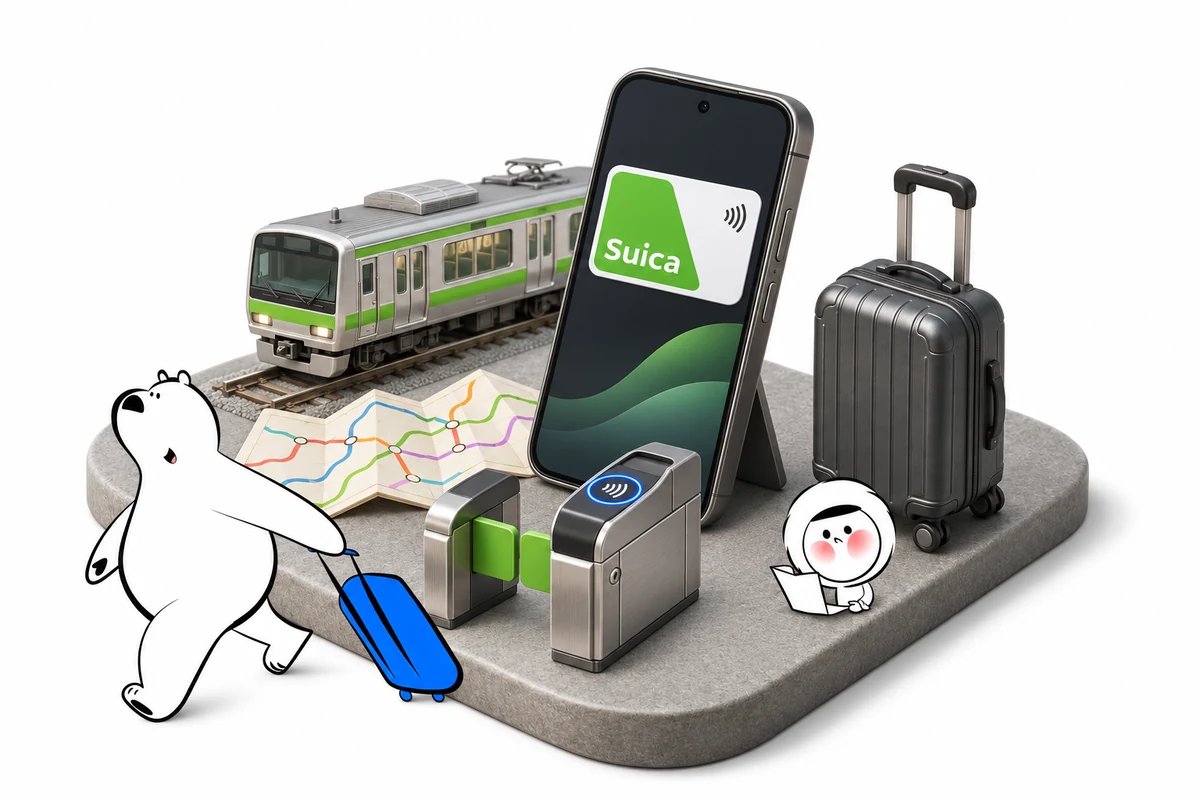
Here is how to use Suica on iPhone: add a card in Apple Wallet, load yen and tap at compatible ticket gates or shop readers. Express Mode makes payments quicker, and tapping works offline. Check your device and payment card before relying on it in Japan.
Choose the Right Suica for Tourists
An ordinary Suica added in Wallet, Welcome Suica Mobile and a physical Welcome Suica are different products. Their setup routes and validity rules should not be treated as interchangeable.
| Option | How You Get It | Key Point for Travelers |
| Ordinary Suica in Apple Wallet | Create a card through Wallet or transfer an eligible physical card | The direct Wallet setup is the main method below |
| Welcome Suica Mobile | Use JR East’s visitor-focused app | A 180-day product with no ordinary balance refund |
| Standard physical Welcome Suica | Obtain a visitor card in Japan | Valid for 28 days from purchase; useful if you prefer a separate card |
JR East’s Welcome Suica Mobile terms specify the 180-day validity and refund restrictions. The standard physical Welcome Suica has a different 28-day period; do not apply that deadline to every digital Suica card.
For a simple pay-as-you-go setup, start with Wallet. If you prefer the visitor app, check its requirements and expiry before adding money.
Check Your Suica Apple Wallet Requirements
For the direct Wallet route, use a supported iPhone, an Apple Account with two-factor authentication and an eligible payment card. Welcome Suica Mobile has its own device requirements.
Apple’s current Wallet setup requirements list iPhone 8 or later with the latest iOS supported by the device, alongside older Suica-specific exceptions. Travelers using an older handset should check that exception against their exact model before departure.
By contrast, JR East lists iPhone XR or XS and later, with iOS 17.2 or later, for Welcome Suica Mobile. Do not use the Wallet minimum as proof that the visitor app will run.
Have a working internet connection for setup and online payment. Keep a second way to pay available until you have successfully issued and funded the card.
How to Use Suica on iPhone: Add Your Card
You can add Suica to Apple Wallet directly without installing the separate Suica app for this setup. The first transit card you add is automatically set to Express Mode.
Follow the current Apple Wallet instructions:
- Open Wallet and tap the + button.
- Choose Transit Card, or Travel Card depending on your interface language.
- Select Suica, then the option to add a new card.
- Choose the initial amount to load.
- Confirm the purchase with an eligible payment card and complete the prompts.
- Check that the Suica card and its balance appear in Wallet.
If you already have several transit cards, check which one has Express Mode enabled. Do this before approaching the gate so you know which card will be used.
Setting up Welcome Suica Mobile instead
The visitor app follows a separate registration flow. JR East’s installation instructions require a secret keyword and location services; app availability is limited to certain countries.
Issuing or topping up through that app may be restricted before you reach Japan. Keep your secret keyword securely and avoid assuming that changing phone-region settings will bypass the restriction.
Top Up Your Suica and Check the Balance
Suica’s stored-value balance has a ¥20,000 ceiling. Add only what you expect to spend soon, especially near the end of your trip.
Follow Apple’s transit-card top-up steps: in Wallet, select Suica, tap Add Money, choose an amount and authenticate the payment. Check the resulting Suica balance rather than assuming a bank notification proves the top-up succeeded.
JR East confirms the Apple Pay Suica balance limit. A payment card being present in Apple Wallet does not guarantee that every attempted top-up will be accepted; resolve declined payments with the issuer rather than repeatedly retrying.
Use cash when an online top-up fails
You can add cash to an existing Apple Pay Suica at supported locations. JR East’s cash top-up guidance includes participating convenience stores, most Seven Bank and Lawson Bank ATMs, and compatible tray-style station machines.
At a participating convenience store, ask the cashier to charge your Suica and follow the reader instructions. A machine that requires inserting a plastic card is not the right choice for your phone.
Treat Suica as a payment method within your transport and shopping budget, not a separate unlimited travel allowance. Eskimo’s Japan trip cost breakdown can help organize the wider expenses.
Get Eskimo eSIM to stay connected in Japan
Need internet in Japan? Here's what we recommend:

Fixed data plans
- No speed reduction
- No expiry, keep your data forever
- Transfer data to anyone
- Personal hotspot



Unlimited data plans
- Unlimited day pass
- Daily 3GB high-speed + 1Mbps unlimited after
- Personal hotspot


Tap Through Gates and Pay in Shops
With Express Mode enabled, you can use Suica without opening Wallet or authenticating for each tap. A cellular or Wi-Fi connection is not required for the gate transaction.
Hold the top of the iPhone near the reader and wait for confirmation. For eligible rail journeys, use the same Suica when entering and exiting; follow the operator’s instructions on buses.
At participating shops, tell the cashier you want to pay with Suica and hold the phone near the payment reader. Apple’s Suica usage instructions also explain checking your balance and using Service Mode when station staff need to inspect the card.
If a gate rejects the tap, step aside and ask staff for help rather than switching to another transit card midway through the journey. Check your balance and explain where you entered.
Where Suica Works and When You Need Another Ticket
Suica works on participating transport networks and at merchants displaying compatible IC-card acceptance marks. It is not an unlimited rail pass or blanket permission to board every train.
JR East’s Suica coverage guidance describes interoperable networks across Japan, but warns against using stored-value travel to cross separate IC service areas. Check the specific route instead of assuming that acceptance in two cities makes the journey between them eligible.
Limited-express services can require an additional ticket. A loaded Suica alone also does not establish that you have booked or paid for a Shinkansen journey.
Using Suica with a Shinkansen reservation
For eligible SmartEX journeys, register and assign your IC card according to the booking instructions before boarding. The SmartEX boarding rules explain that the Shinkansen fare is charged to the booking payment card, not deducted from Suica’s stored balance.
That separates two jobs: Suica can identify the linked reservation at the gate, while the reservation pays for the journey. Check that the correct card is linked, and collect any seat-information slip issued at the gate.
For everyday planning beyond tickets, Eskimo’s first-time Japan travel tips cover practical preparations and keeping cash available.
Fix Suica Setup and Top-Up Problems
Match the fix to the stage that failed: card creation, payment, balance display or a gate tap. Deleting the card is not a sensible first response to every error.
| Problem | First Check | Next Step |
| Suica cannot be added | Device eligibility, Apple Account and payment card | Follow the displayed error and official setup guidance |
| Welcome Suica Mobile cannot issue a card abroad | Location permission and country restrictions | Follow JR East’s guidance; issuance may need to wait until Japan |
| Online top-up fails | Suica balance and issuer transaction status | Contact the issuer or use supported cash top-up for an existing card |
| Balance looks wrong | The card shown in Wallet | Follow Apple’s Service Mode guidance; seek help if it remains incorrect |
| Gate will not open | Correct Suica, balance and journey entry | Ask station staff to inspect the transaction |
For Welcome Suica Mobile, JR East warns that a failed debit-card top-up may still produce a temporary bank deduction. Keep the transaction details and contact the card issuer; do not interpret a pending charge as spendable Suica balance.
Mobile Data for Train Travel in Japan
Suica gate taps work offline, but route searches, disruption updates and online top-ups still benefit from internet access. Download essential journey details before traveling, and allow for variable reception in tunnels, stations and rural areas.
An Eskimo Japan eSIM plan provides a Japan-focused option for a compatible phone. Eskimo’s overall coverage across 175 countries and regions is relevant if your itinerary continues elsewhere, although you must choose plans covering those onward destinations. No-expiry fixed data means an unused Japan allowance can remain available for a future visit.
New users can also claim a free 500MB Global eSIM.
FAQs
Moving a card, recovering its balance and obtaining a refund are different processes. Check the rules for the specific Suica product you created before changing devices or ending your trip.
Can I use the same Suica on iPhone and Apple Watch?
Not simultaneously. Apple allows a transit card to move between devices, but the same card can be active on only one at a time; finish your journey before transferring it.
Does Suica work when my iPhone battery dies?
Supported iPhones may keep eligible Express Mode cards available through power reserve for up to five hours after the phone needs charging. Apple says this does not work when you deliberately power the phone off; check its Express Mode guidance and keep the phone charged.
Can I get a refund for unused Suica balance?
The standard Apple Pay Suica withdrawal procedure sends eligible refunds to a Japanese bank account. Welcome Suica Mobile generally does not refund unused stored value, so avoid loading a large surplus near departure.
Will transferring a physical Suica leave both cards usable?
No. After an eligible physical card is transferred into Wallet, the plastic card stops working. Do not treat it as an independent backup for the same balance.
Conclusion
Use Wallet’s direct Suica setup if you want a straightforward way to pay eligible fares and make small purchases with your iPhone. Choose Welcome Suica Mobile deliberately, with its separate requirements and expiry in mind.
Before your first journey, confirm that the card is funded and Express Mode is set correctly. Keep a backup payment method, add money in manageable amounts and check additional ticket requirements for longer trips. That preparation matters more than loading a large balance at the airport.