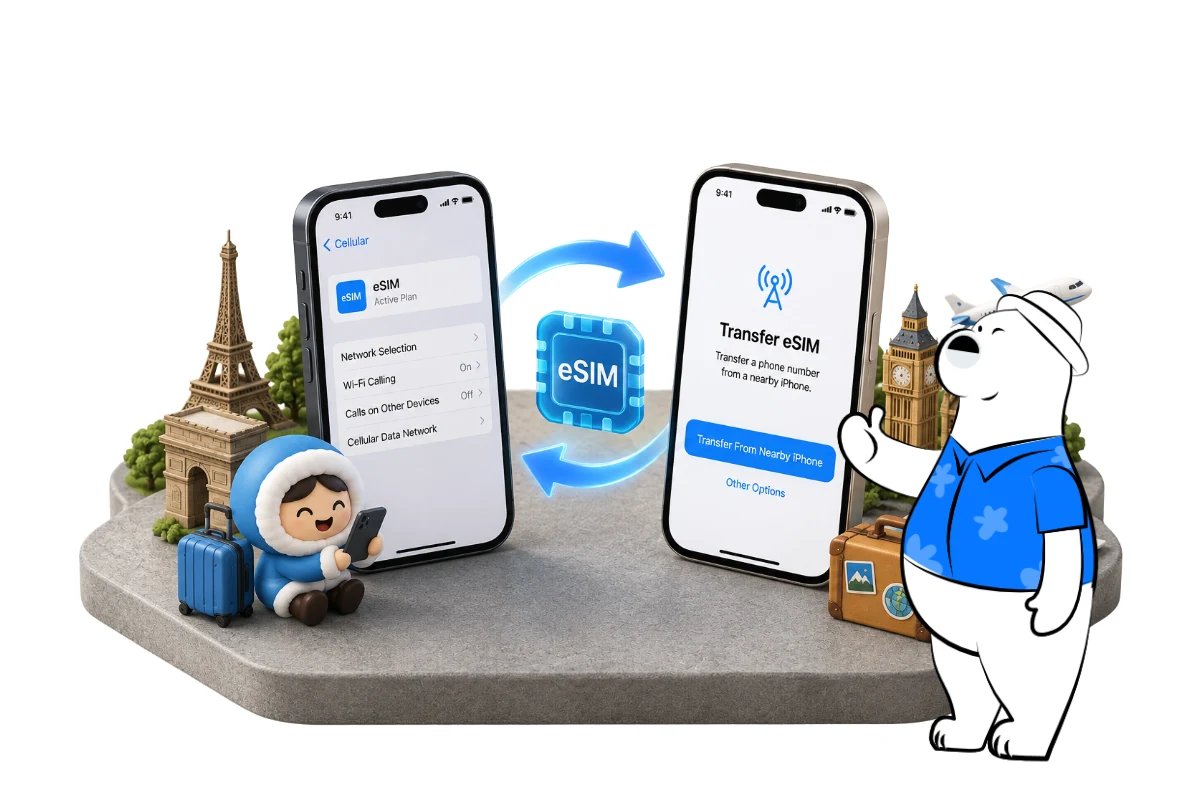
You can transfer an eSIM to a new iPhone using Apple’s eSIM Quick Transfer feature if your carrier supports it. On your new iPhone, open Settings > Cellular > Add eSIM, select Transfer From Nearby iPhone, and follow the instructions on both devices.
If Quick Transfer is unavailable, your carrier may offer another activation method, such as a QR code, carrier app, or account-based activation.
Travel eSIMs work differently. Some can be reinstalled on another device, while others cannot be transferred after their initial installation.
Before deleting an eSIM from your old iPhone, confirm that your provider allows transfers or reinstallations. Removing an ineligible profile could interrupt your mobile service.
Before Transferring Your eSIM to a New iPhone
Apple’s eSIM Quick Transfer requires compatible iPhones and a participating mobile carrier.
Check iPhone compatibility
eSIM is supported on the iPhone XS, iPhone XS Max, iPhone XR, and newer compatible models, although availability varies by country and device configuration.
To check your iPhone:
- Open Settings > General > About.
- Look for an EID number.
- Check Carrier Lock for No SIM restrictions if you plan to use a travel eSIM.
An EID indicates embedded SIM hardware, but it does not guarantee compatibility with every carrier or eSIM provider.
Prepare both iPhones
For Apple’s current Quick Transfer process:
- Both iPhones should run iOS 18.4 or later.
- Both devices must be signed in to your Apple Account.
- Bluetooth must be enabled.
- Keep the devices close together.
- Unlock your old iPhone.
- Ensure your new iPhone has an internet connection.
- Confirm that your carrier supports Quick Transfer.
These requirements apply to Apple’s supported nearby-device transfer process. Other activation methods may have different requirements.
For the latest instructions, see Apple’s official eSIM setup guide.
How to Transfer eSIM From an Old iPhone to a New iPhone
Apple’s Quick Transfer feature allows customers of participating carriers to move an eligible phone number between iPhones.
You can transfer your eSIM during initial setup or after setting up the new device.
Transfer eSIM during new iPhone setup
If your new iPhone has not been set up:
- Turn on your new iPhone and place it near your old device.
- Follow the initial setup instructions.
- When prompted to configure cellular service, select the option to transfer a phone number.
- Choose the eligible number from your old iPhone.
- Confirm the transfer request on your previous device.
- Complete any required verification.
- Wait for the cellular plan to activate.
Once activation finishes, the previous SIM associated with that number is deactivated.
Test your new iPhone’s cellular connection before erasing or trading in your old device.
Transfer eSIM after setting up your new iPhone
If you’ve already completed the initial setup:
- Open Settings > Cellular > Add eSIM on your new iPhone.
- Select an eligible number if one appears.
- Otherwise, choose Transfer From Nearby iPhone, if available.
- Follow the instructions on your old iPhone.
- Confirm the transfer or enter the displayed verification code.
- Wait for activation to complete.
Your carrier may require additional verification.
If the transfer option is missing, your carrier may not support Quick Transfer for that plan.
How to Transfer eSIM Without Quick Transfer
If Apple’s Quick Transfer is unavailable, you may still be able to activate your existing mobile number on another iPhone.
The correct method depends on your provider.
Use a carrier QR code
Some carriers issue a replacement QR code when customers change devices.
To activate it:
- Request the appropriate activation details from your carrier.
- Open Settings > Cellular > Add eSIM.
- Select Use QR Code.
- Scan the code supplied by your carrier.
- Follow the instructions to complete activation.
A previously used QR code may not work again.
Use a carrier app or contact support
Some carriers support device changes through their official apps.
Sign in, select your new device, and follow the available eSIM activation instructions.
If self-service activation is unavailable, contact your carrier. You may need to provide your new iPhone’s IMEI or EID, found under Settings > General > About.
How to Transfer an Eskimo eSIM to a New iPhone
Eskimo travel eSIMs do not use Apple’s standard carrier Quick Transfer process.
Instead, Eskimo’s published guidance describes manually reinstalling an eligible existing eSIM profile on another compatible device.
Its transfer guidance allows up to five installations when the previous profile is removed correctly, subject to the applicable conditions.
Reinstallation is different from replacement. The installation allowance does not guarantee that an unusable profile will be replaced free of charge.
Get Eskimo eSIM to stay connected globally
Need internet while travelling? Here's what we recommend:

Fixed data plans
- No speed reduction
- No expiry, keep your data forever
- Transfer data to anyone
- Personal hotspot


Check your Eskimo eSIM before transferring
Before switching devices, confirm that:
- Your new iPhone supports eSIM and is carrier-unlocked.
- You can access your Eskimo account.
- Your existing profile remains eligible for reinstallation.
- You have access to the required installation details.
- Your new iPhone has a reliable internet connection.
If you are unsure whether your eSIM can be reinstalled, contact Eskimo support through its in-app live chat or at support@eskimo.travel before deleting the profile.
Remove your Eskimo eSIM from the old iPhone
Only proceed after confirming that removal is required and your profile remains eligible.
- Open Settings > Cellular on your old iPhone.
- Select your Eskimo eSIM.
- Confirm that you have selected the correct profile.
- Scroll down and tap Delete eSIM.
- Confirm the removal.
Deleting the profile removes it from your old iPhone. It does not automatically create a replacement eSIM.
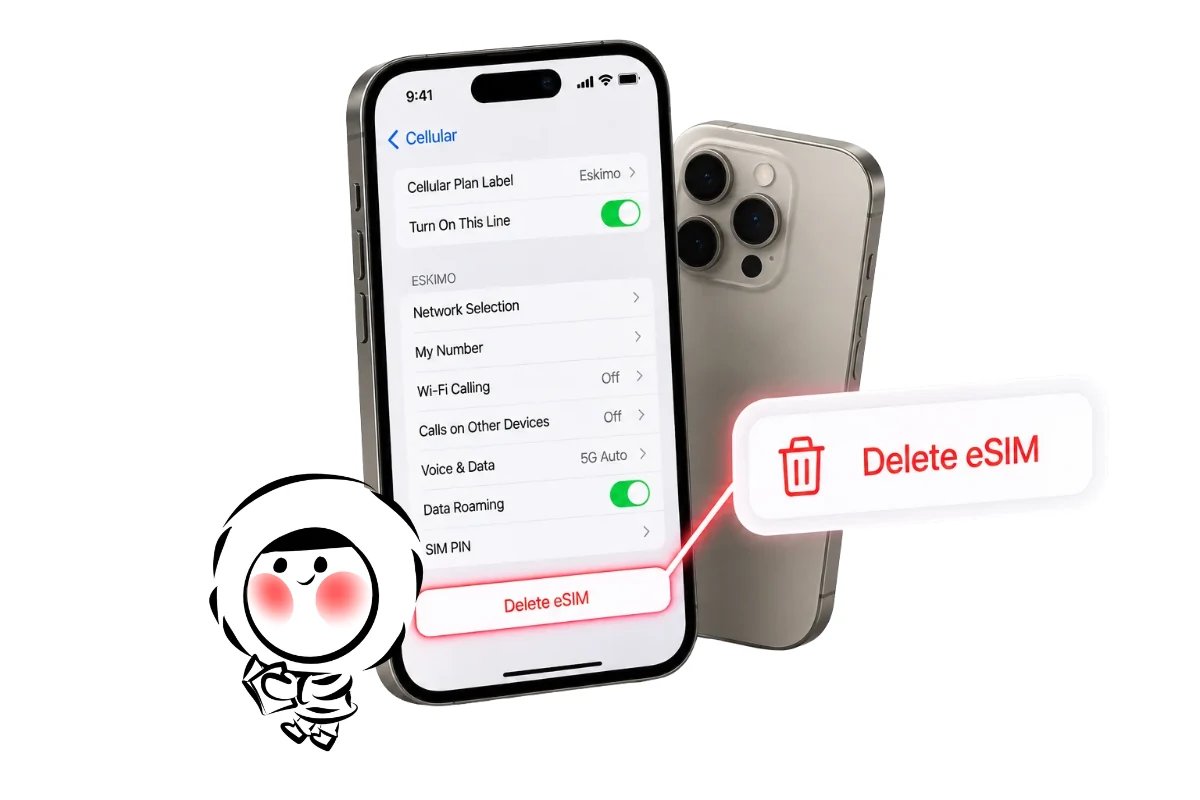
Caption: Only delete an Eskimo eSIM after confirming that the profile is eligible for reinstallation.
Reinstall your Eskimo eSIM on the new iPhone
After correctly removing the eligible profile:
- Connect your new iPhone to Wi-Fi.
- Sign in to your Eskimo account.
- Open the installation instructions for your existing eSIM.
- Follow the available direct installation, QR code, or manual activation method.
- Confirm that the Eskimo eSIM appears under Settings > Cellular.
For complete instructions, see Eskimo’s guide to installing an eSIM on iPhone.
When you’re ready to use the plan, enable the Eskimo line, select it for mobile data, and turn on data roaming as instructed.
If the existing profile cannot be reinstalled, contact Eskimo support. Replacement eligibility and any purchase requirements depend on the applicable policy.
Travel eSIM Transfers Between iPhones
Not every travel eSIM supports device changes.
Some providers allow existing profiles to be reinstalled, while others restrict an eSIM to its first installation.
Before switching phones, confirm:
- Whether device transfers or reinstallations are permitted.
- Whether the original profile must be removed first.
- Whether your activation details can be reused.
- Whether your remaining data stays available.
- Whether a replacement requires another purchase.
A provider may allow unused data to be shared or transferred without allowing the underlying eSIM profile to move between devices.
Always check the provider’s policy before removing an active travel eSIM.
How to Transfer eSIM When Your Old iPhone Is Lost or Broken
Apple’s nearby-device Quick Transfer generally requires access to your previous iPhone.
If your old device is lost, damaged, or unavailable, contact your mobile carrier.
Depending on the provider, you may be able to activate your number using a replacement QR code, account verification, or carrier-assisted activation.
For travel eSIMs, ask whether your existing profile can be recovered or replaced.
Restoring an iCloud backup does not guarantee that your previous eSIM’s cellular service will be restored.
If you use Eskimo, contact support before attempting to reuse your previous installation details.
How to Fix eSIM Transfer Problems on iPhone
If your eSIM transfer fails, identify whether the problem involves the transfer option, activation, or provider restrictions.
Transfer From Nearby iPhone is missing
Check that your carrier supports Quick Transfer, both devices meet Apple’s software requirements, Bluetooth is enabled, and your old iPhone is unlocked.
Keep the devices nearby and restart them if necessary.
If the option remains unavailable, use your carrier’s alternative activation method.
eSIM transfer or activation fails
A transfer may fail because the provider requires additional verification, the activation code has already been used, or the profile cannot be installed on another device.
Check your internet connection and follow any pending carrier instructions.
For travel eSIMs, confirm reinstallation eligibility before attempting another installation.
If the eSIM installs but mobile data does not work, see Eskimo’s guide to fixing common eSIM installation issues on iPhone.
Using Eskimo After Switching iPhones
Before traveling internationally with a new iPhone, confirm that the device supports eSIM and complete the required installation while you have reliable Wi-Fi. Check your destination coverage and select the correct mobile data line. Network availability and connection quality depend on local partner networks and coverage conditions.
With Eskimo eSIM plans, travelers can arrange prepaid mobile data for maps, messaging, and bookings. Eskimo’s overall service coverage spans 175 countries and regions, although coverage varies by plan. Eligible fixed-data plans also offer no-expiry data, allowing unused data to remain available for future trips under the applicable terms.
New users can also claim 500MB of free Global eSIM data when signing up for Eskimo.
Frequently Asked Questions
Can I transfer my eSIM to a new iPhone without my old phone?
Apple’s nearby-device Quick Transfer generally requires access to your previous iPhone. If the old device is unavailable, contact your carrier about alternative activation methods, such as a replacement QR code or account-based activation.
Will my eSIM transfer automatically when I set up a new iPhone?
Not always. Apple may offer to transfer an eligible cellular plan during setup, but the option depends on carrier support, device compatibility, and software requirements.
Should I delete my eSIM before transferring it?
Only if your provider specifically instructs you to do so. Apple’s Quick Transfer normally handles deactivation of the previous SIM automatically. Travel eSIM providers may have different removal requirements.
Can I transfer my Eskimo eSIM to a new iPhone?
Eskimo’s published guidance allows eligible profiles to be manually reinstalled up to five times under the applicable conditions. Confirm your profile’s eligibility before removing it from your old iPhone.
Will I lose my remaining data when transferring an eSIM?
For standard carrier-supported transfers, your active cellular service generally moves to the new device. For prepaid travel eSIMs, retaining unused data depends on the provider’s reinstallation and plan policies.